ADD TILE TO ALL STORES
This adds one product across all of your stores. Note, this adds the tile to every store in your account.
You can do this in two ways:
Use the vertical ellipsis ⋮ (three dots) in the corner of any tile and click “Add tile to all stores”
In a product, click Edit > Product Description or Product Settings > and the three dots ⋮ to the right of the save option. There you will find an option to add that tile to all stores.
If you have one product in multiple but not all stores, “add to all stores” will add the the tile to the stores without the product. For example, if you have “Guest Fee” in two stores out of ten, “add to all stores” will add the tile to your remaining eight stores.
You will not see the option to add the tile to all stores if a product with the same name already exists in all your other stores. To update this, you must delete or change the name of the tile in existing stores before it will allow you to add the new tile to all stores.
If you want to add the product to some stores and not others, after you add the tile to all stores you can delete the tile from any individual store - the tile will not repopulate.


SAVE PRODUCT UPDATES IN ALL STORES
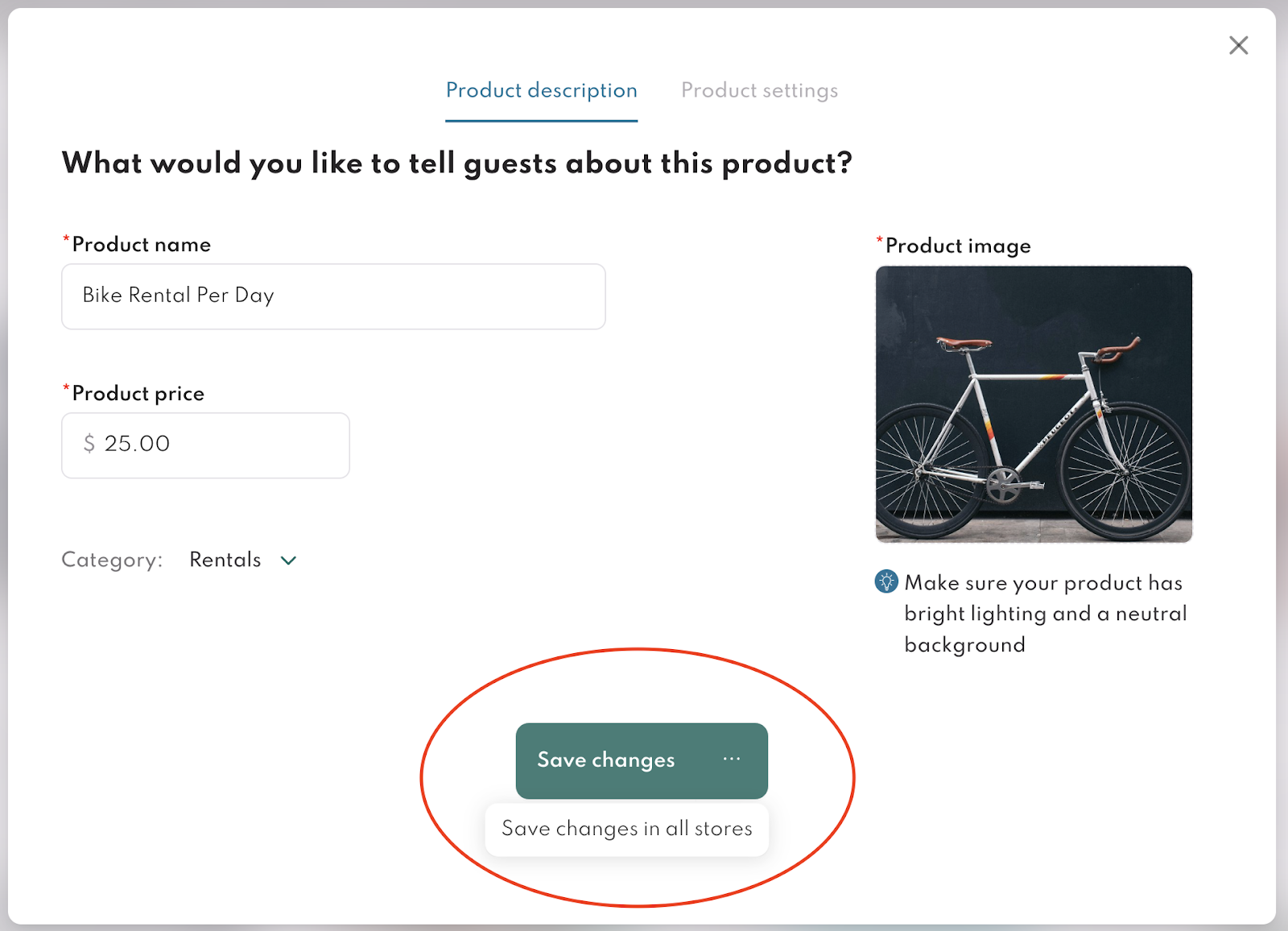
Update all of the details in a tile and save the updates to all of your stores. Note, this overrides all the existing previous information for the tile including description, third party contact information, etc.
To mass update a product:
Click Edit > Product Description or Product Settings > and the three dots ⋮ to the right of the save option. There you will find an option to save changes to the tile in all stores.
Note that if you have made changes to a default product (Guest Fee, Pet Fee, Late Checkout, Early Check In) and then create a new store from scratch, the default products in the new store will have the original default values. This will not be the case if you duplicate an existing store - the duplicated store will carry over your existing details for each tile.
To update these products, the owner should navigate to one of their existing stores and make bulk updates to apply these changes to the new store.
Comments
0 comments
Please sign in to leave a comment.